Install Thunderbird
1.. When thunderbird first opens you will see the following.
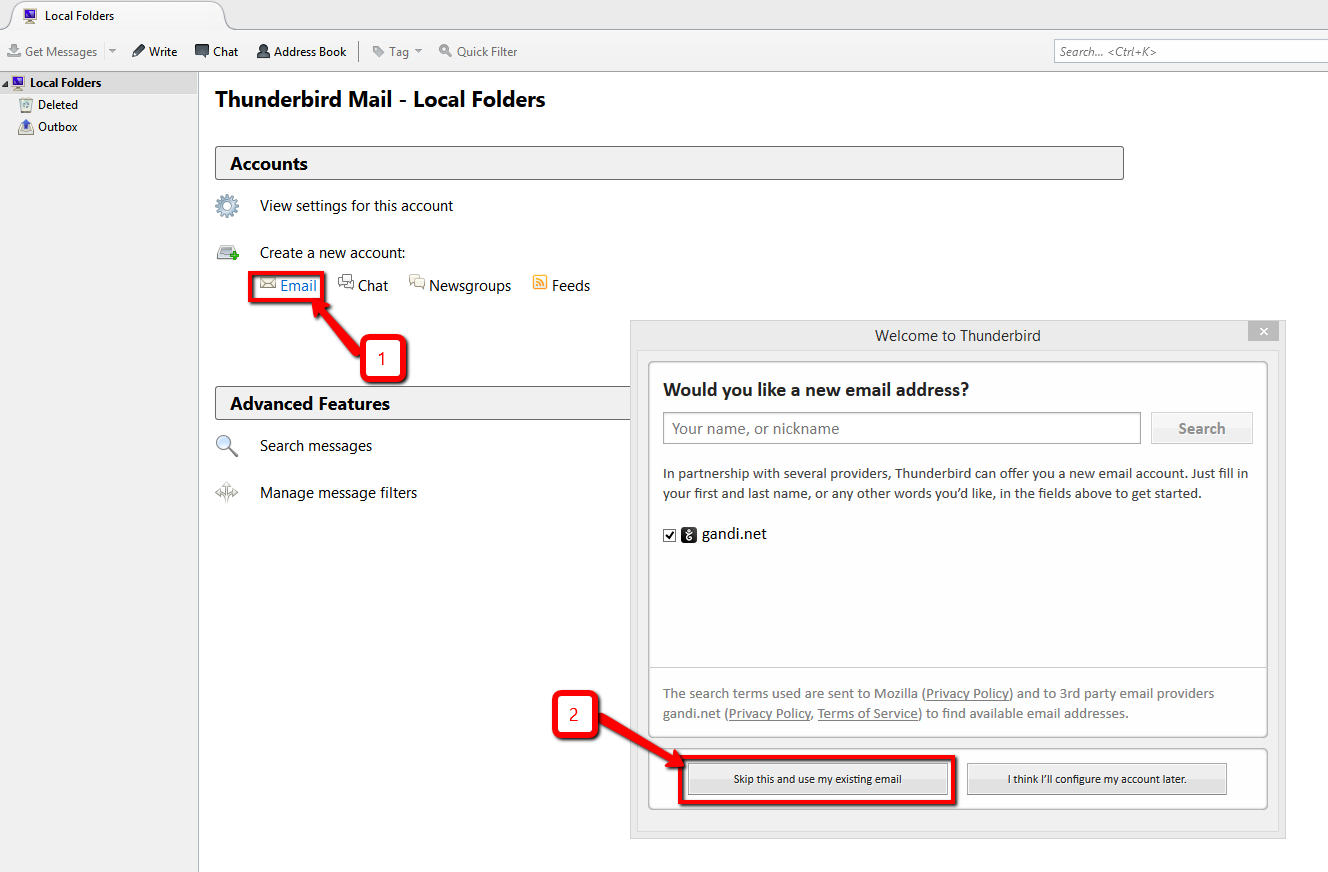
2.. Click on the Skip this and use my existing email
3.. Next screen is this one.
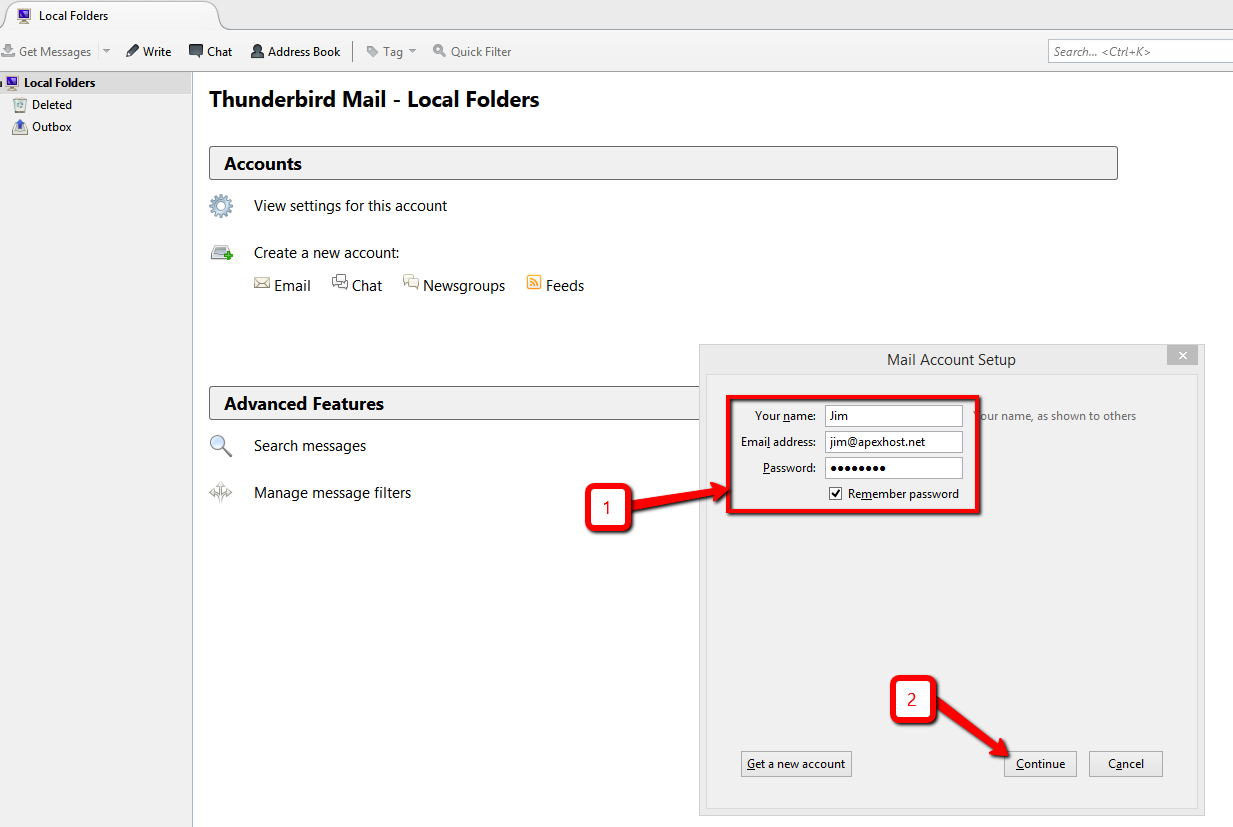
4.. Enter your name and email address and the password for that address.
5.. Click on continue then click on the Manual Config button.
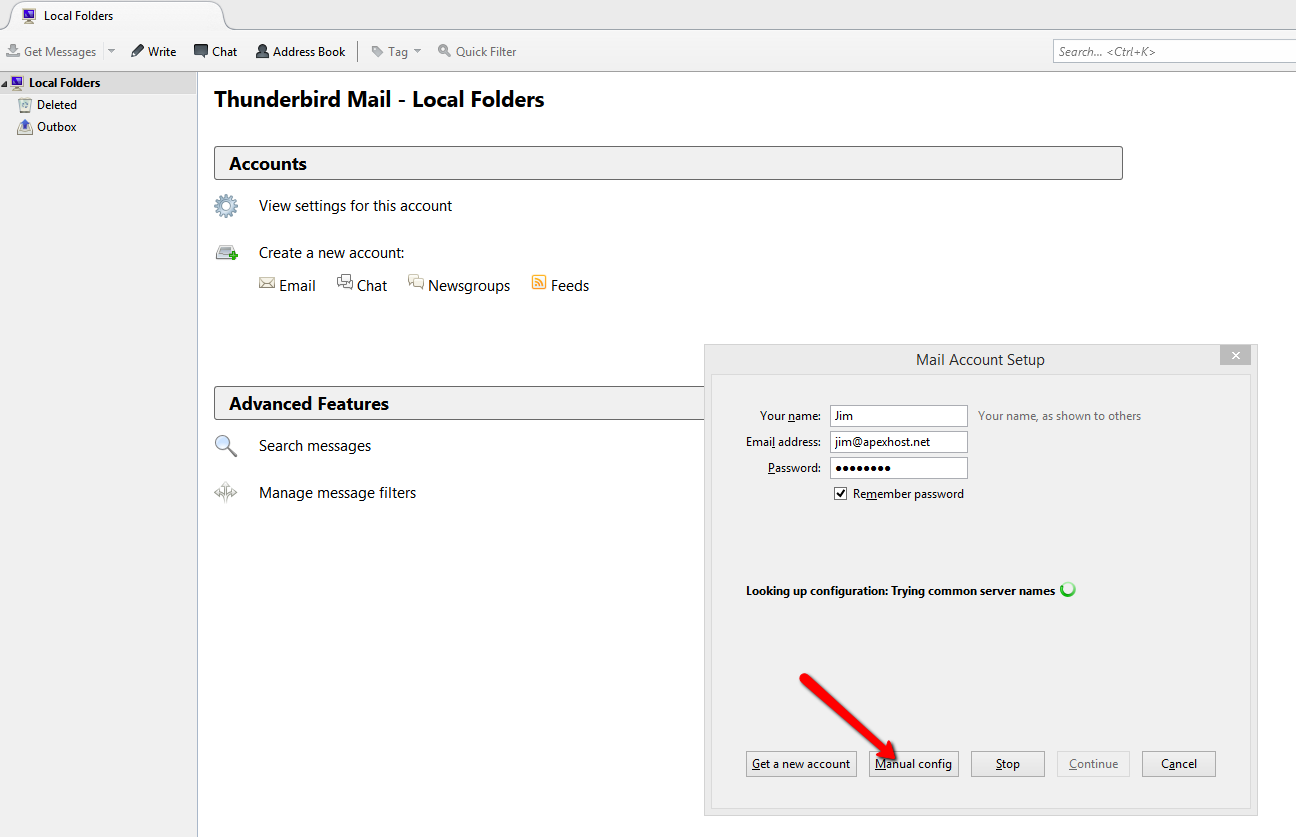
6.. Clicking on the manual config button opens this window.
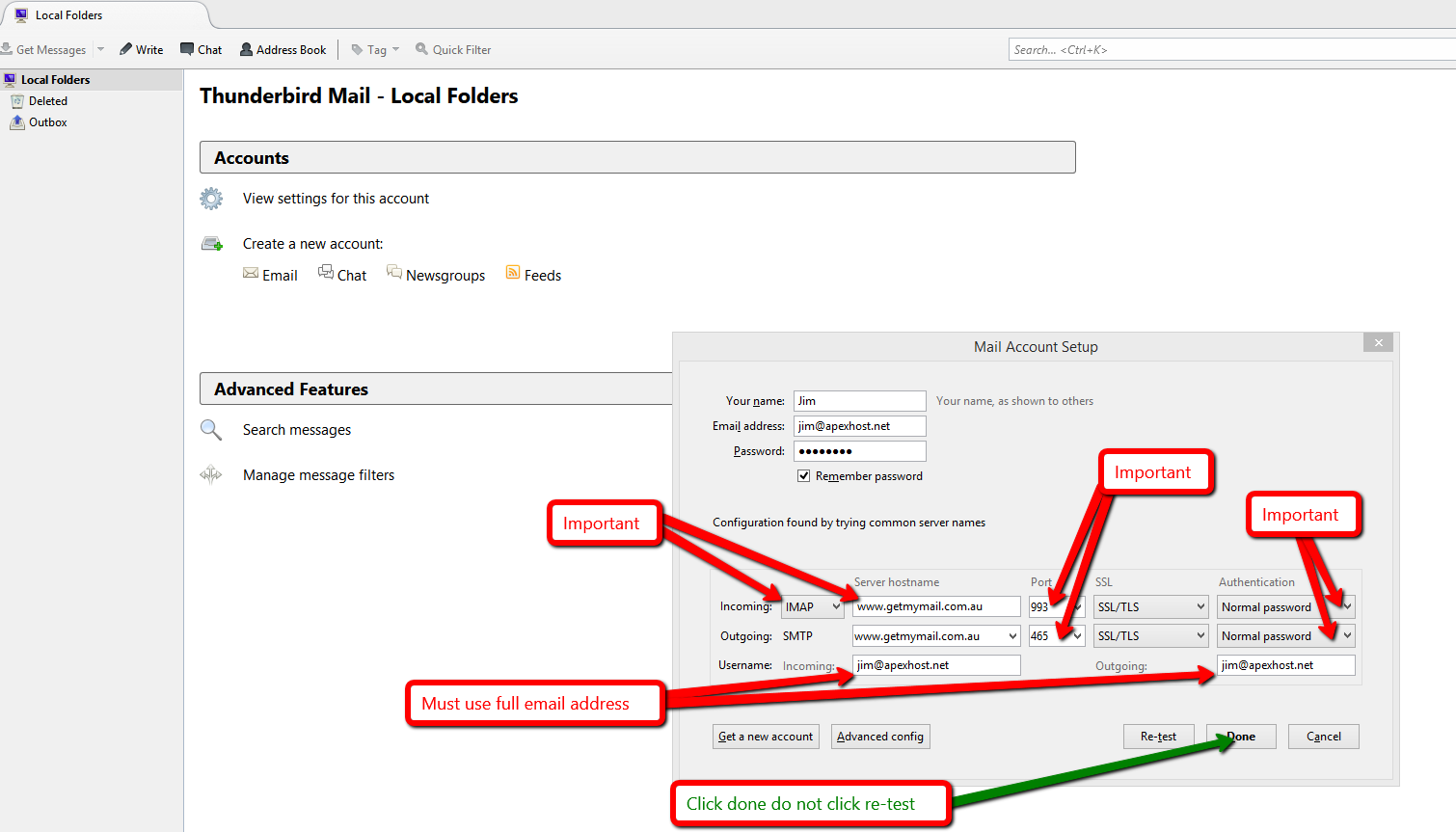
7.. It is VERY important to get all fields here 100% correct.
Incoming IMAP is www.getmymail.com.au Port 993 SSL selected, Authentication Normal.
Outgoing SMTP is www,getmymail.com.au Port 465 SSL selected, Authentication Normal.
Username is your FULL email address in both incoming and outgoing
Click on DONE one you have set all the above, do not click on Re-Test
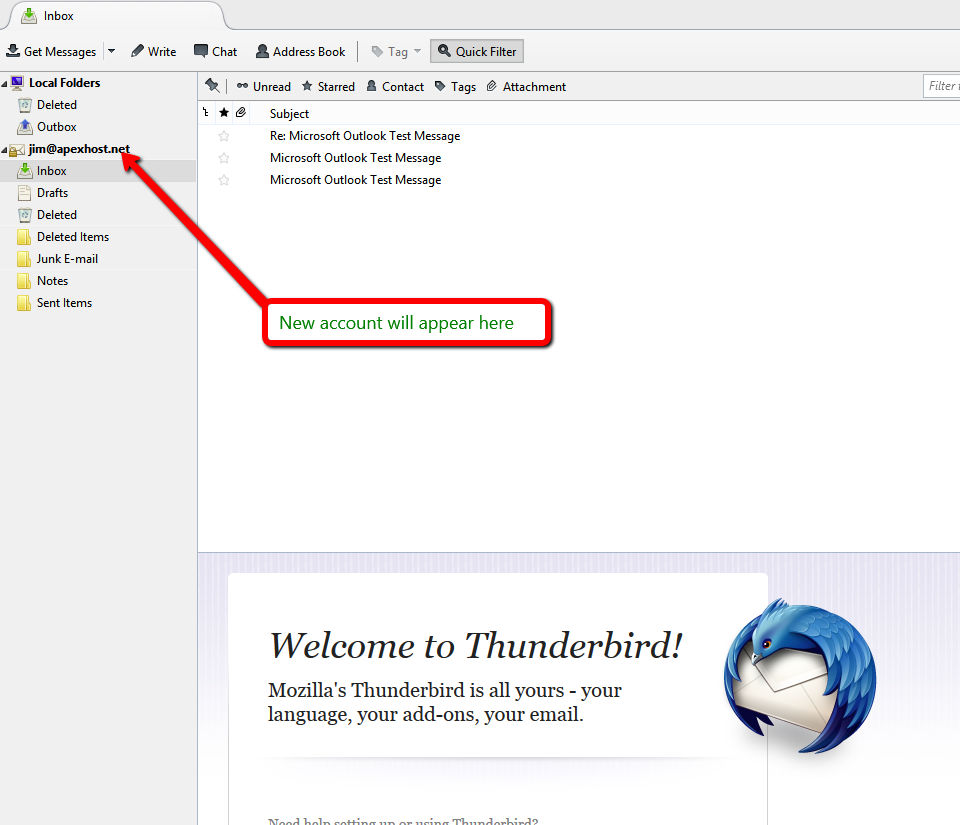
You should see this screen with your new account setup as below.