
Quick: How to create SQL 2005 Database.
- Log in to the control panel at http://control.apexhost.net.au
- Click on Databases select database type.
- Click on Create Database and enter your preffered name
- Click Save
- Click on create user then enter your preffered username and password. System will only allow min 6 char with 2 numbers.
- In the drop dpwn list choose the database you just created in step 3.
- Be sure to tick the tickbox next to the DB name under databases (matching your new DB)
- Click Save.
Detaied:
Creating SQL Server Database and Database User
Open Hosting Space home page.
To see the list of SQL Server databases and users point Databases in the hosting space left navigation menu and click select SQL Server from the popup menu:
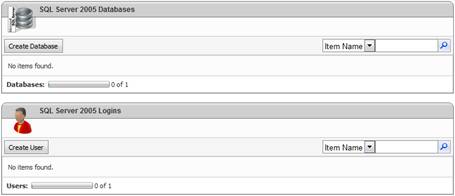
To create a new SQL Server database click Create Database button:
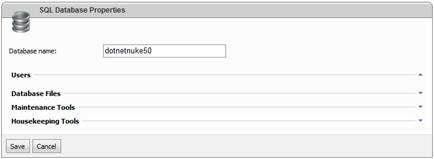
Specify database name and click Save button to finish the wizard.
The next step is to create database user account and associate it with the database.
To create database user account click Create User button:
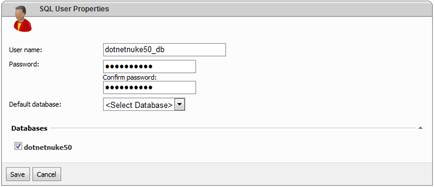
Specify username, password and then in Databases sections tick those databases you want to grant access for this user account. Database user will granted db_owner role in the selected databases.
You could specify Default database as well. Its optional field, but once selected the name of the database could be omitted from connection string of your application.